



Help Center
How can we help?
Short video guides with written steps, so you can set up your firm and get more from Rafeeq.
Getting started
 1:21
Register your firm and start your free trial
Create your account in one click with Google or LinkedIn, or with your email and then confirm it, and open your firm on Rafeeq Almohamah with a 14-day free trial, no credit card needed.
 1:05
Invite your team and set permissions
Invite colleagues to your firm by email or WhatsApp, give each member a role, and change it whenever you need.
 1:18
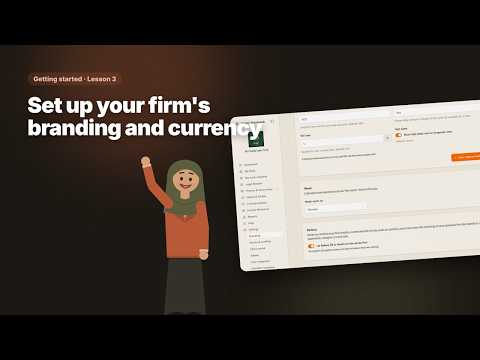
Set up your firm's branding and currency
Upload your firm's logo, choose its display name and colour, and set the currency, VAT, Hijri dates and the first day of your work week.
 1:30
Sign in and two-factor security
Sign in to Rafeeq Almohamah, turn on two-factor sign-in with an authenticator app on your phone, and keep your recovery codes safe.
 1:03
Install the app on your phone and computer
Install the Rafeeq Almohamah app on your computer from Chrome or Edge, and on an Android phone, iPhone or iPad, and open your firm in one tap.
 1:07
Tips: start your firm off right
Five tips for your first week on Rafeeq Almohamah: branding first, inviting your team with the right roles, deciding who sees which case, reminders by email and WhatsApp, and the video guides inside the app.
Cases
 1:31
Set up your firm's practice areas
Set up the case categories your firm works in: add a category with its Arabic and English names, change its name and order, switch off a category you don't practise without losing its cases, and delete one that isn't used.
 1:26
Open a new case
Create a new case in Rafeeq Almohamah: pick the practice area, enter its title, type, your client's position, the lead attorney, the court details and the opponents, then link the client to it.
 1:27
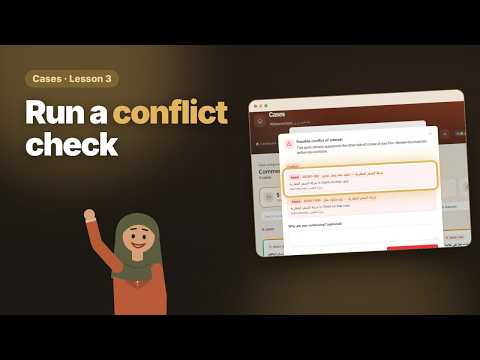
Run a conflict check before taking a case
Rafeeq Almohamah checks every new case's opponents against the parties of all your cases: read the conflict, decline or continue with a written reason, check an existing case, and review the conflict-check log.
 1:12
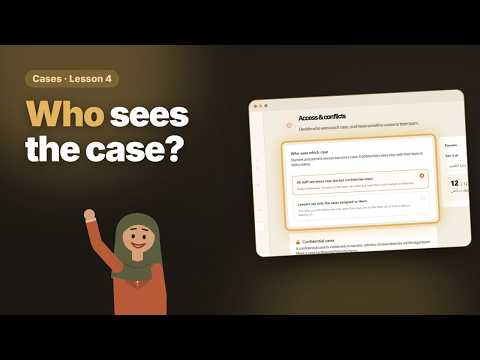
The case team and who can see it
Add members to a case's legal team, see who can open the case and why, make it confidential so only its team sees it, and set your firm's rule for who sees cases.
 1:23
Hearings and postponing them
Add a hearing to a case with its date, place and attendees, choose what the client sees of it, postpone it to a new date, and record its outcome once it is held.
 1:20
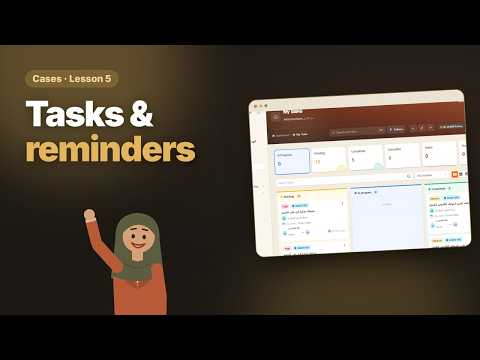
Tasks and reminders
Add a task to a case and assign it to a colleague with a priority and a due date, track its status, add a reminder linked to the case from your work schedule, and see all your tasks in My tasks.
 1:16
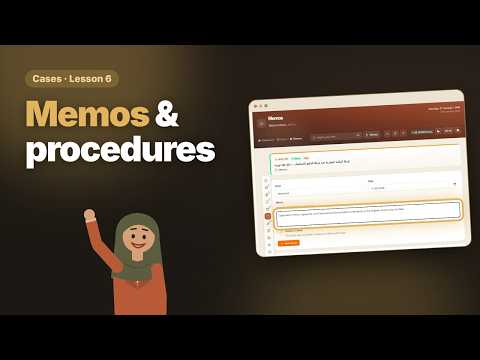
Memos and procedures
Log a case's memos with their source, date and internal content, choose what the client sees of them, then add the case's procedures, link them to its claims, and mark them completed when done.
 1:06
Case files and sharing them with the client
Upload a case's files into clearly named folders, choose who on your team sees them, share what you want with your client in their portal, and check what they see under What the client sees.
 1:48
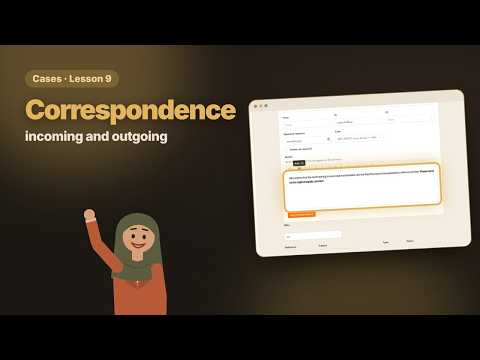
Incoming and outgoing correspondence
Log every outgoing or incoming letter and write it in a formatted editor, attach its documents, print it on your firm's letterhead, ask for a follow-up with a reply date, and record the reply when it arrives.
 1:10
Tips: run your cases without missing a date
Five tips for running cases: add every hearing the day you get its date, with its attendees, give every task an assignee and a due date, start your day with the next 7 days, ask for a follow-up on every letter with a reply date, and keep your client informed in plain words.
 1:17
Reassign work and hand over a colleague's day
When a lawyer is out, hand their hearings and tasks to a colleague in one step: pick who covers and for how long, review what will move by case, then confirm, and each moved item shows Covering for their name until you undo it when they're back.
Rafeeq AI
 1:03
Ask the case
Ask Rafeeq about any case in your own words, and it answers from the case's records: hearings, tasks, memos and the documents it has read, with your earlier questions and answers kept on the same page.
 1:17
Let Rafeeq read your case documents
Ask Rafeeq to read a case file once, check the pages and the cost before you confirm, then ask about it and get answers that name the page they came from.
 1:03
Voice commands: tell Rafeeq
Tell Rafeeq what you need by voice or by typing: add a task, a reminder or a memo, or open or update a case, and it shows what it understood for you to check, saving nothing until you confirm.
 1:18
Rafeeq credits and how they are counted
Get to know the Rafeeq balance your firm shares: what's available now, where it comes from, when it renews, what each action costs, who used it this month, and how to top it up.
 1:32
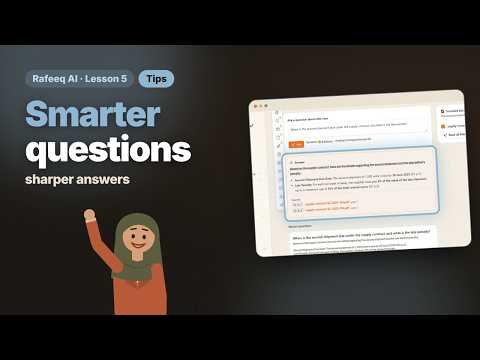
Tips: smarter questions, sharper answers
Five tips to get more from Rafeeq: ask a specific question, check the source before relying on an answer, have it read the key documents once, choose what goes into its answers, and review a command before confirming it.
 1:17
Allow the microphone on Windows
If the browser never asks for the microphone on Windows, allow it for the site and for the browser in the privacy settings, and pick the right microphone, so Rafeeq can hear you.
 1:12
Allow the microphone on a Mac
If the browser never asks for the microphone on a Mac, allow it for the site in Chrome, Edge or Safari, and for your browser in System Settings, so Rafeeq can hear you.
 1:11
Allow the microphone on Android
If Chrome never asks for the microphone on Android, allow it for the site and for Chrome in the app settings, and make sure microphone access is on, so Rafeeq can hear you.
 1:12
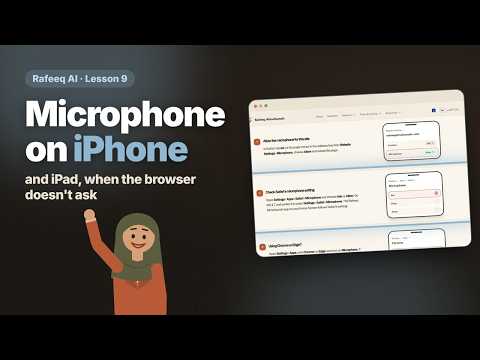
Allow the microphone on iPhone and iPad
If Safari never asks for the microphone on iPhone or iPad, allow it for the site and in Safari's settings, or for Chrome and Edge in the app settings, so Rafeeq can hear you.
Clients and the portal
 1:16
Add a client
Add your client to Contacts with their name, type and contact details, and Rafeeq checks for a conflict of interest automatically before saving; then update their details whenever you need.
 1:21
Give a client portal access
Invite your client to the client portal from Contacts; they create their account, accept, and follow their cases themselves.
 1:21
What the client sees and case updates
See a case the way your client sees it, post them an update in your own words, hide what they don't need, and set what clients see and what alerts them in the portal settings.
 1:08
Chatting with your client
Chat with your client inside their case and send them files; they reply from the portal, you're notified of the reply, and the whole conversation stays with the case.
 1:07
A tour of the portal as the client
Tour the client portal the way your client sees it: their cases, the next hearing and adding it to their calendar, case updates, payments, and the documents you share with them.
 1:09
Tips: serve your clients with trust and clarity
Five tips for serving your clients: open the portal to every client from day one, write to them in plain words, check what they see before every important hearing, share documents on purpose, and keep your conversations inside the case.
Subscription and add-ons
 1:52
A website for your firm, on your own domain
Buy the Firm Website add-on, fill in the wizard (mostly pre-filled from your firm's data in Rafeeq), submit it for build, and review the preview until we launch your site on your domain. Your website year starts the day it goes live.
 1:53
Your firm's website: what you get, from preview to launch
After you submit the wizard: what your firm's website includes, how to review the preview and ask for changes or approve it, what happens at launch, when your website renews, and how to ask for a change once it is live.
Useful links
 1:11
Browse and search useful links
Open Useful links to find the official sites for courts, registries, tax and more, grouped by task for your firm's country, switch country any time, search in Arabic or English without worrying about spelling, and read the badges before you open a site.
 0:59
Favourites, quick links and quick search
Star the portals you open every day so they show in Favourites and in Quick links on your dashboard, open any link from any page with Ctrl+K, and hide the links your firm doesn't need.
 1:05
Your firm's own links
Add links of your firm's own, like your client portal or a supplier you work with, and they show to your team alone under Our firm's links with a distinct card, everyone can star and search them, the owner, admins and managers manage them, and how many you keep depends on your plan.
 1:01
Suggest a link to the Rafeeq team
If you find a useful official site that isn't in Useful links, suggest it, the Rafeeq team checks it, adds it for every firm and notifies you of the decision, you follow your suggestions under My suggestions, and you can also suggest a correction when a link changes.
 0:51
Tips: official sites one click away
Five tips for Useful links: star the portals you use daily so they show on your dashboard, read the badges to have your digital ID ready before you open a site, press / to start searching at once, pick All countries for cross-border matters, and suggest a correction for any link that stops working.
Still have questions?
Our team is here to help. Reach out and we will get back to you shortly.